Settings
Settings
The Settings page lets administrators configure system-wide behavior: login and session settings, workstation defaults, system log retention, default and environment-specific permissions, and (on cloud deployments) autoscaling. You can manage settings through both the GUI and the CLI.
GUI
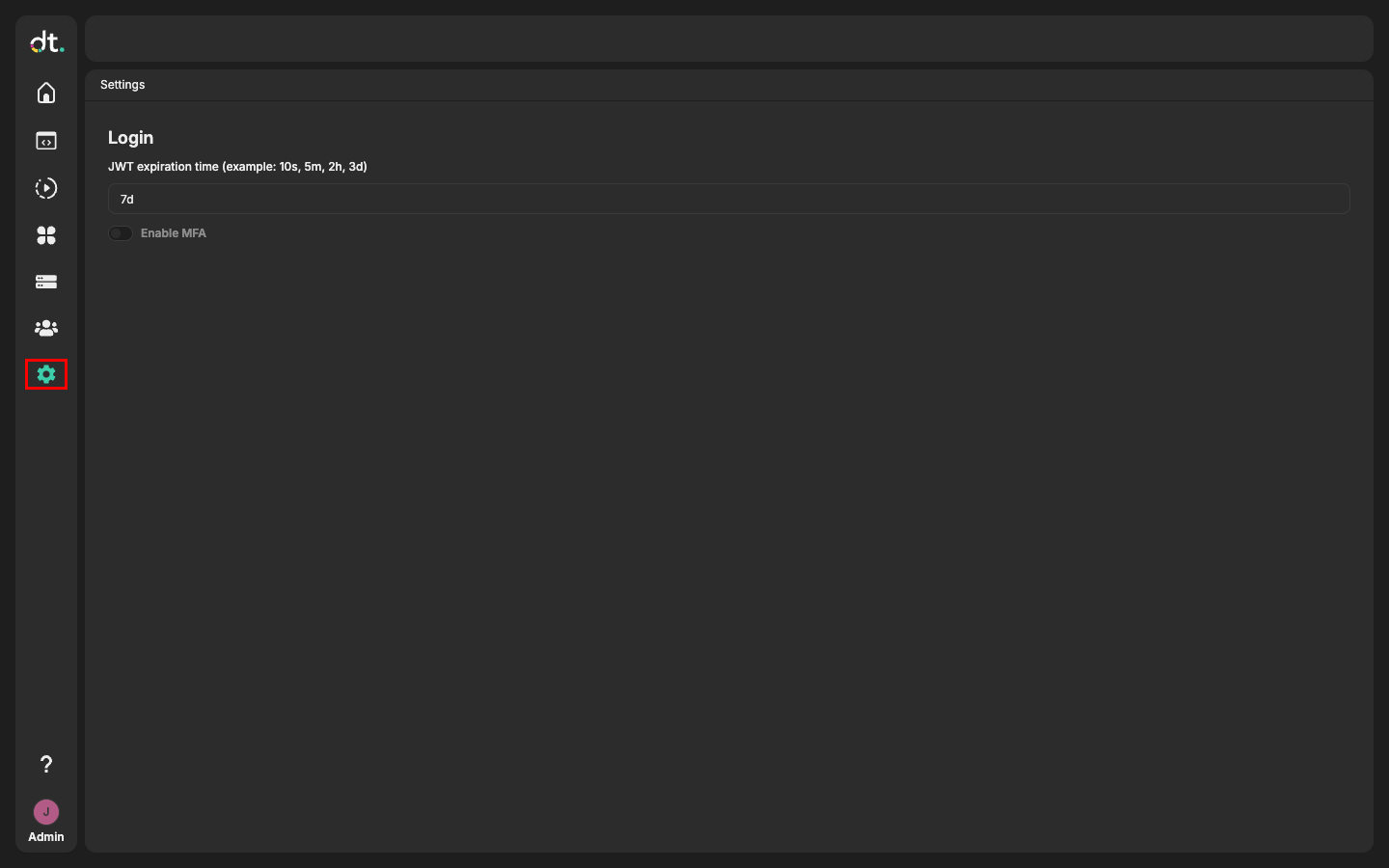
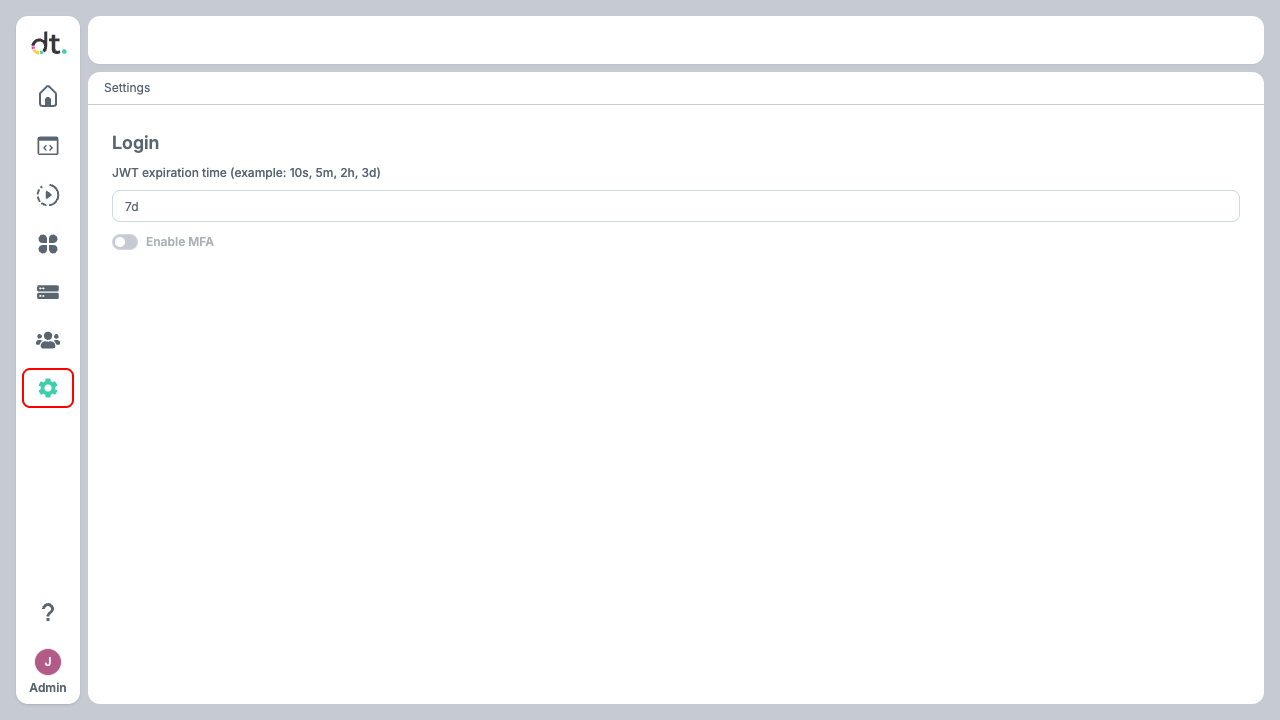
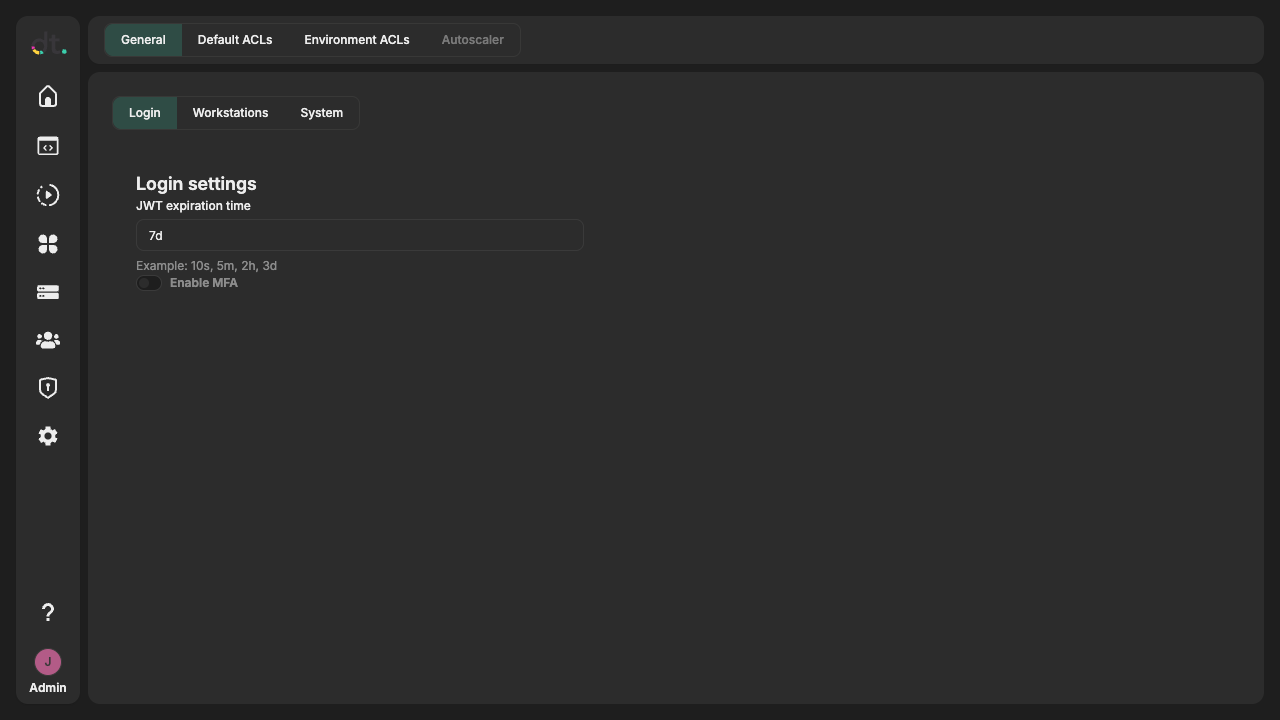
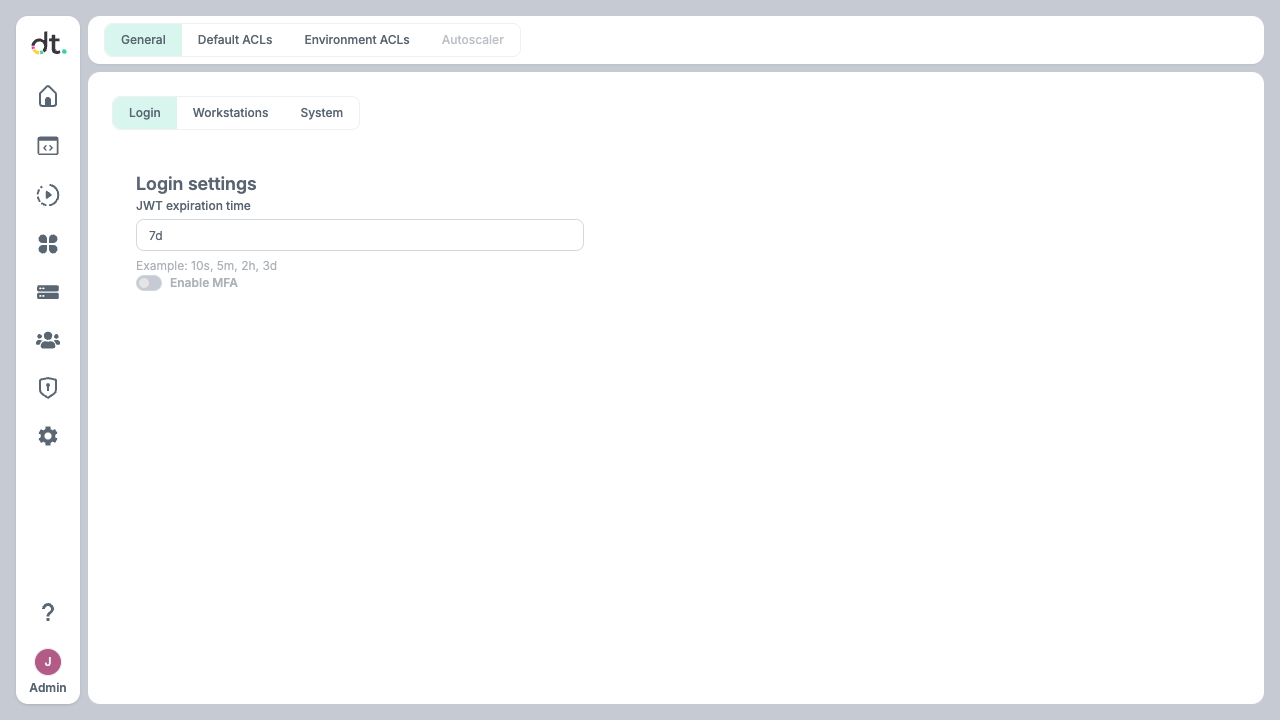
Open Settings from the left sidebar by clicking the Settings (gear) icon. The page is organized into four top-level tabs: General, Default ACLs, Environment ACLs, and Autoscaler. Some tabs have sub-tabs for more specific configuration.
General
The General tab has three sub-tabs: Login, Workstations, and System.
Login settings
The Login sub-tab controls how users authenticate and how long sessions last.
- JWT expiration time
Set how long a signed-in session stays valid. Use a duration string, for example: 10s— 10 seconds5m— 5 minutes2h— 2 hours3d— 3 days
Enter the value in the JWT expiration time field. Shorter values improve security but require more frequent logins.
-
Enable MFA
Turn Enable MFA on to require multi-factor authentication for user logins. When enabled, users must complete a second factor (e.g. TOTP) in addition to their password. -
SSO setup details
For provider support, required fields, and step-by-step setup instructions, see SSO settings below. -
Save or discard
Click Save to apply changes. If you edited fields but don't want to keep them, click Discard to reset the form to the last saved state.
Changes take effect for new logins and token refreshes; existing sessions may continue until their tokens expire.
SSO settings
Use this checklist to configure and validate SSO end to end.
Current provider support
Datatailr currently supports Microsoft Entra ID only for SSO. Support for additional SSO providers is planned in upcoming releases.
- Prepare Microsoft Entra ID app registration
- Create (or reuse) an app registration in your Microsoft Entra ID tenant.
- Collect the following values:
- Application (client) ID -> Datatailr Client ID
- Directory (tenant) ID -> Datatailr Tenant ID
- Client secret value -> Datatailr Client secret
-
Add your Datatailr callback URL as a redirect URI in the app registration, for example:
https://your-domain.com/sso/callback
-
Configure SSO in Datatailr GUI
- Open Settings -> General -> Login.
- Turn on Enable SSO.
- Fill in Client ID, Client secret, Tenant ID, and Redirect URI.
-
Click Save.
-
Verify login flow
- Open the login page in a new/private browser session.
- Confirm the SSO button is visible.
- Click SSO and complete Microsoft sign-in.
-
Confirm you are redirected back to Datatailr and land on the application home page.
-
User provisioning behavior
- Datatailr maps SSO users by email address.
- If no Datatailr user exists for the email, Datatailr creates a new user automatically during first successful SSO login.
Enable SSO using CLI (optional)
You can configure the same login settings via dt settings put:
dt settings put login '{"jwt_expiration_time":"12h","mfa":"false","sso_enabled":"true","sso_client_id":"<client-id>","sso_client_secret":"<client-secret>","sso_tenant_id":"<tenant-id>","sso_redirect_uri":"https://your-domain.com/sso/callback"}'
Use dt settings get login to confirm the stored values.
Workstation settings
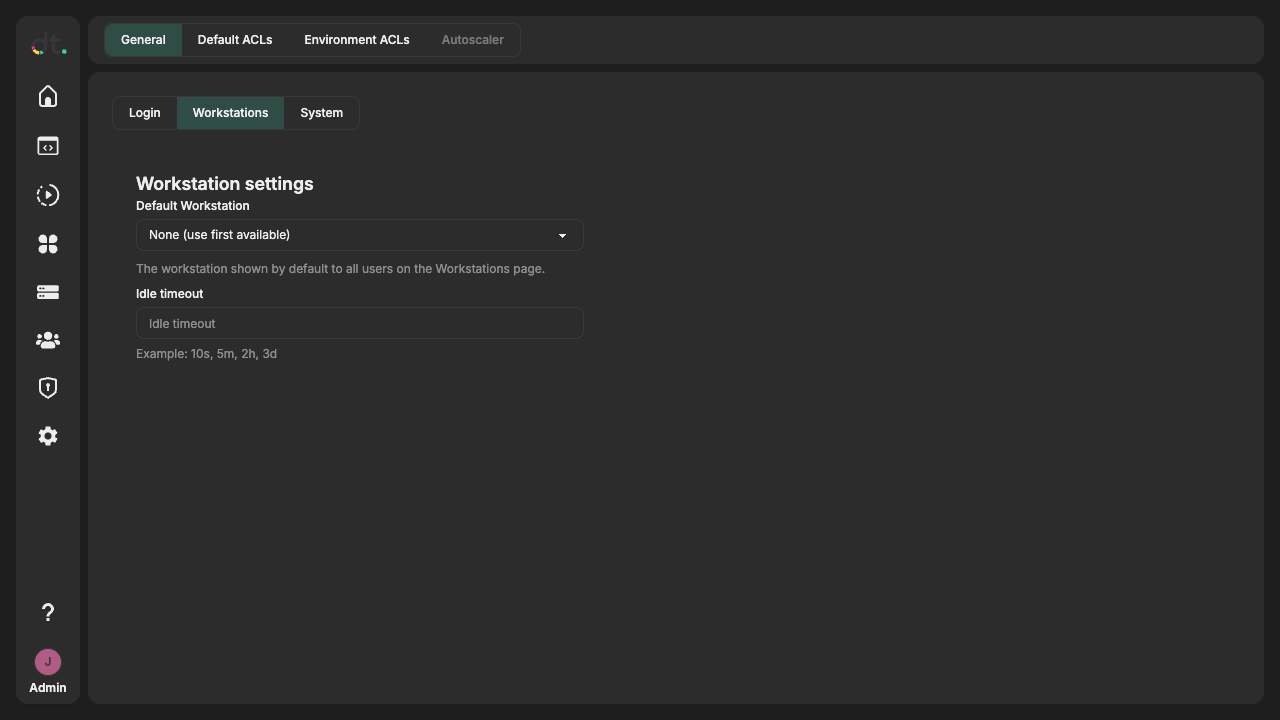
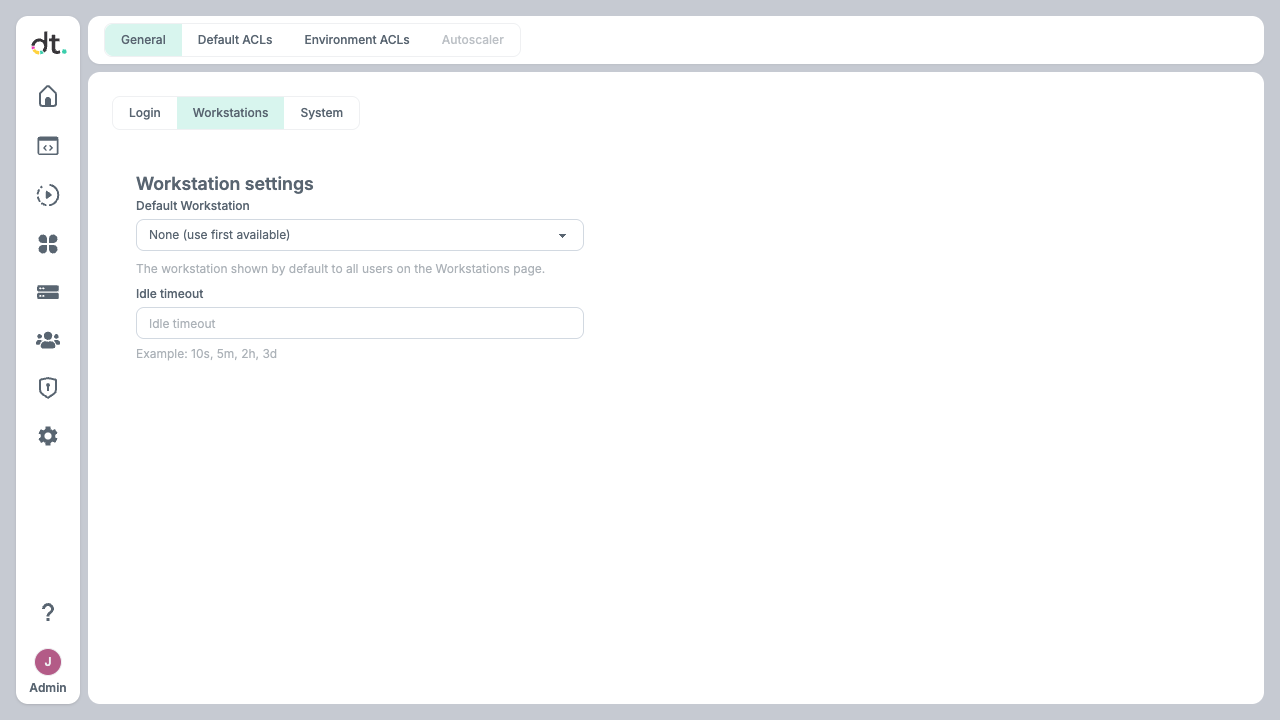
The Workstations sub-tab configures default workstation behavior for all users.
-
Default Workstation
Choose which workstation is shown by default on the Workstations page. Select None (use first available) to let the system pick, or choose a specific workstation from the list. -
Idle timeout
Set how long a workstation IDE can be idle before it is considered inactive. Use a duration string (e.g.10s,5m,2h,3d). Enter the value in the Idle timeout field. -
Save or discard
Click Save to apply; click Discard to revert to the last saved state.
System settings
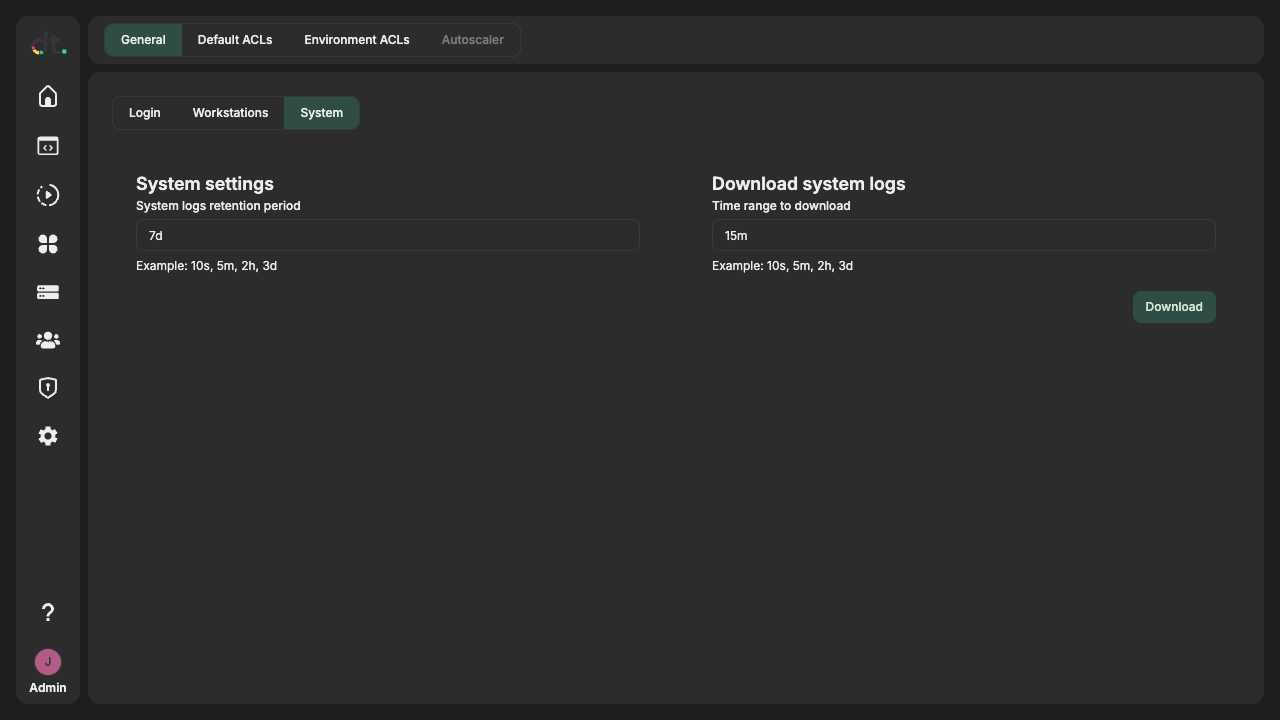
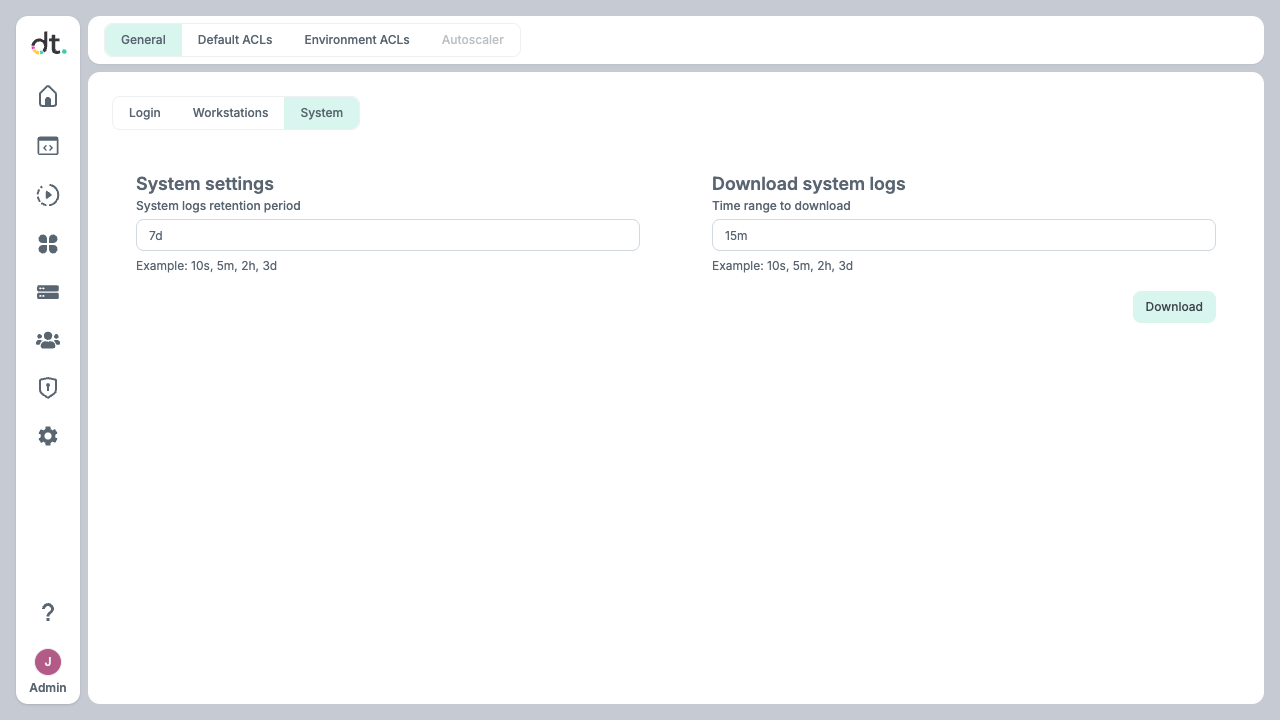
The System sub-tab controls system log retention and lets you download system logs.
-
System logs retention period
Set how long system logs are retained in blob storage before they are purged. Use a duration string (e.g.10s,5m,2h,3d). Enter the value in the System logs retention period field. -
Download system logs
In the Download system logs card, set Time range to download to a duration (e.g.15mfor the last 15 minutes). Click Download to download the logs for that range. -
Save or discard
Changes to the retention period are applied when you click Save; use Discard to revert.
Default ACLs
The Default ACLs tab defines the default permissions applied when new KV (key-value) or Blob resources are created. Use the KV and Blob sub-tabs to configure each resource type. For an introduction to permissions, see Permissions.
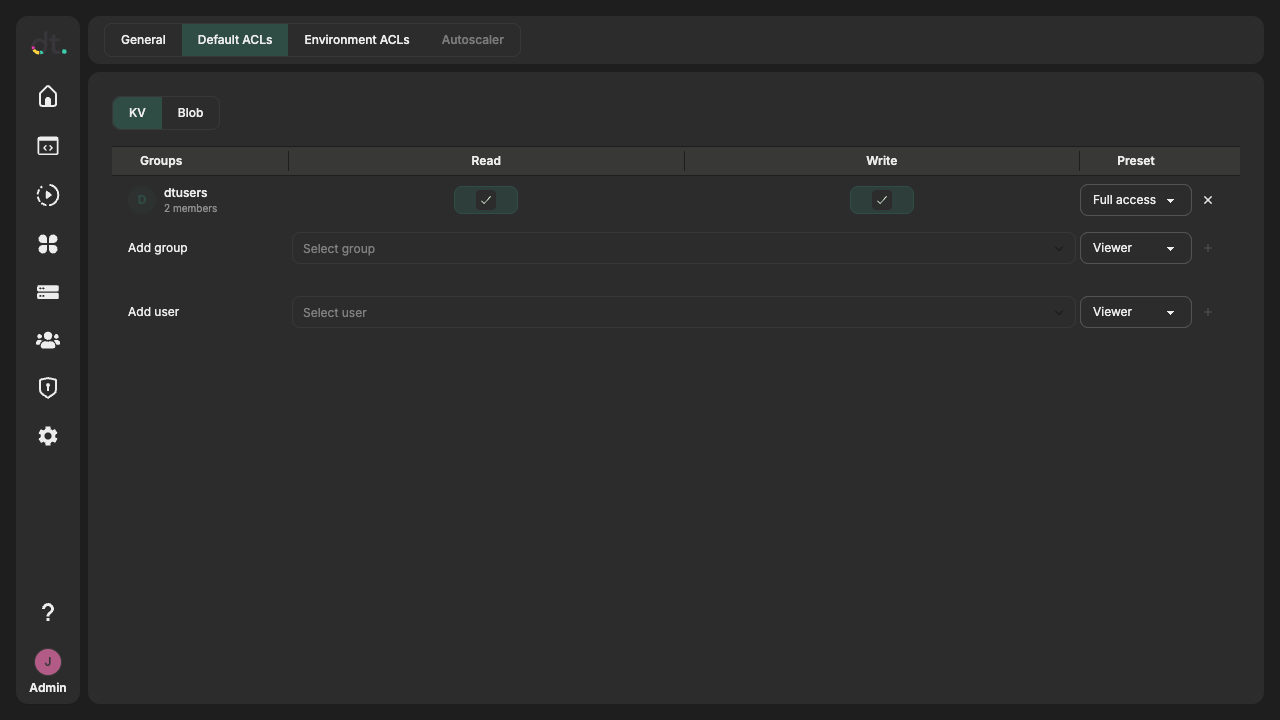
- Groups — Add or remove groups and assign Read and Write permissions. Use the Preset dropdown (e.g. Viewer, Full access) to apply a predefined set.
- Users — Add or remove users and assign Read and Write permissions with the same Preset options.
Changes apply to resources created after you save. Click Save to apply; Discard to revert.
Environment ACLs
The Environment ACLs tab configures who can access compute environments (Dev, Pre, Prod). Use the Dev, Pre, and Prod sub-tabs to set permissions per environment.
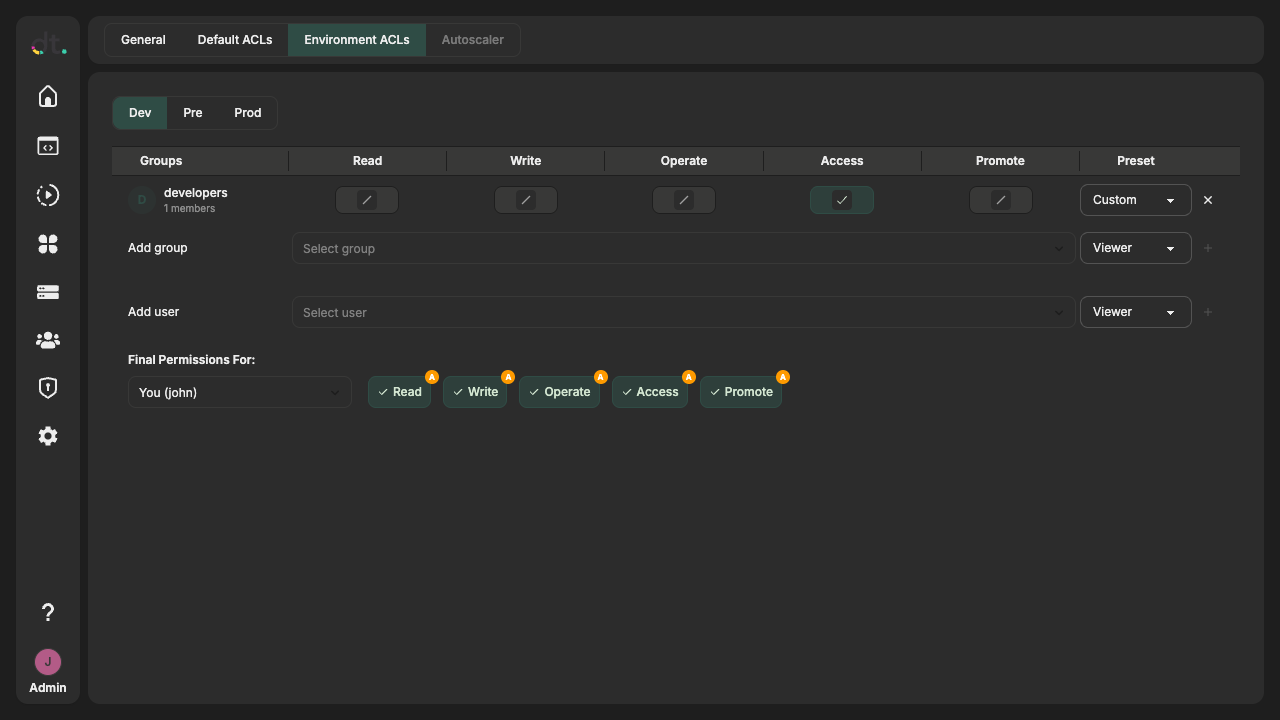
- Groups — Assign groups Read, Write, Operate, Access, and Promote permissions. Use the Preset dropdown (Viewer, Editor, Full access, or Custom) to apply a set.
- Users — Assign the same five permissions to individual users with the same Preset options.
- Final Permissions For — Use the dropdown to select a user and see the effective permissions they have for that environment (including group membership). The badges show which permissions apply and how (e.g. from group or direct grant).
Click Save to apply; Discard to revert.
Autoscaler
The Autoscaler tab configures per-environment autoscaling for cloud deployments (e.g. max CPUs, minimum idle time, preferable VM families). It has sub-tabs for Dev, Pre, and Prod.
Local deployments
The Autoscaler tab is not available on local deployments. The tab is disabled and shows "Not available on local version." Use it when running on a cloud provider (e.g. AWS, Azure, GCP).
When available, you can set:
- Enabled — Turn autoscaling on or off for that environment.
- Fallback to other families — Allow scaling to VM families other than the preferable ones when needed.
- Max CPUs — Maximum number of CPUs for the environment (integer ≥ 0).
- Minimum idle time — How long a node must be idle before it can be scaled down (duration string).
- Minimum uptime — Minimum time a node must run before it can be scaled down (duration string).
- Preferable families — Comma-separated list of VM family names (e.g.
standardDPSv5Family, StandardDpsv6Family).
CLI
Settings can also be managed with the dt settings commands. This is useful for scripting and automation.
| Action | Command |
|---|---|
| List all settings | dt settings ls |
| List settings by prefix | dt settings ls <prefix> |
| Get a setting | dt settings get <key> |
| Set a setting | dt settings put <key> <value> |
| Remove a setting | dt settings rm <key> |
| List schemas | dt settings ls-schemas |
| List schemas by prefix | dt settings ls-schemas <prefix> |
| Get a schema | dt settings get-schema <key> |
| Set a schema | dt settings put-schema <key> <value> |
| Remove a schema | dt settings rm-schema <key> |
Common flags:
-p/--pretty— Pretty-print output (e.g. indented JSON).-j/--json— Output as JSON.-v/--include-values— Forls, include values in the listing.-J/--json-enrichened— Forputandput-schema, return the created or updated entity as JSON.-o/--offset— Forlsandls-schemas, start at the given offset (default 0).-b/--batch-size— Forlsandls-schemas, maximum results per batch (default 100).
Examples:
# List all settings
dt settings ls

# List settings with values
dt settings ls -v

# Get a specific setting
dt settings get <key>

# Set a value
dt settings put <key> <value>

# Set a value from a file
dt settings put <key> file:///path/to/file.json

# Default ACLs (e.g. for KV) — key under default_acls/ prefix
dt settings get default_acls/kv
dt settings put default_acls/kv file:///path/to/acl.json

# List and get schemas
dt settings ls-schemas
dt settings get-schema <key>
dt settings put-schema <key> <value>