Workstations
Workstation Management
Administrators can create, edit, copy, and delete workstations from the Workstations page. Open it from the left sidebar by clicking the Workstations icon.
Creating a New Workstation
Click the Add New button in the top navbar to open the workstation creation dialog. The form is a two-step wizard.
Step 1 — Configuration
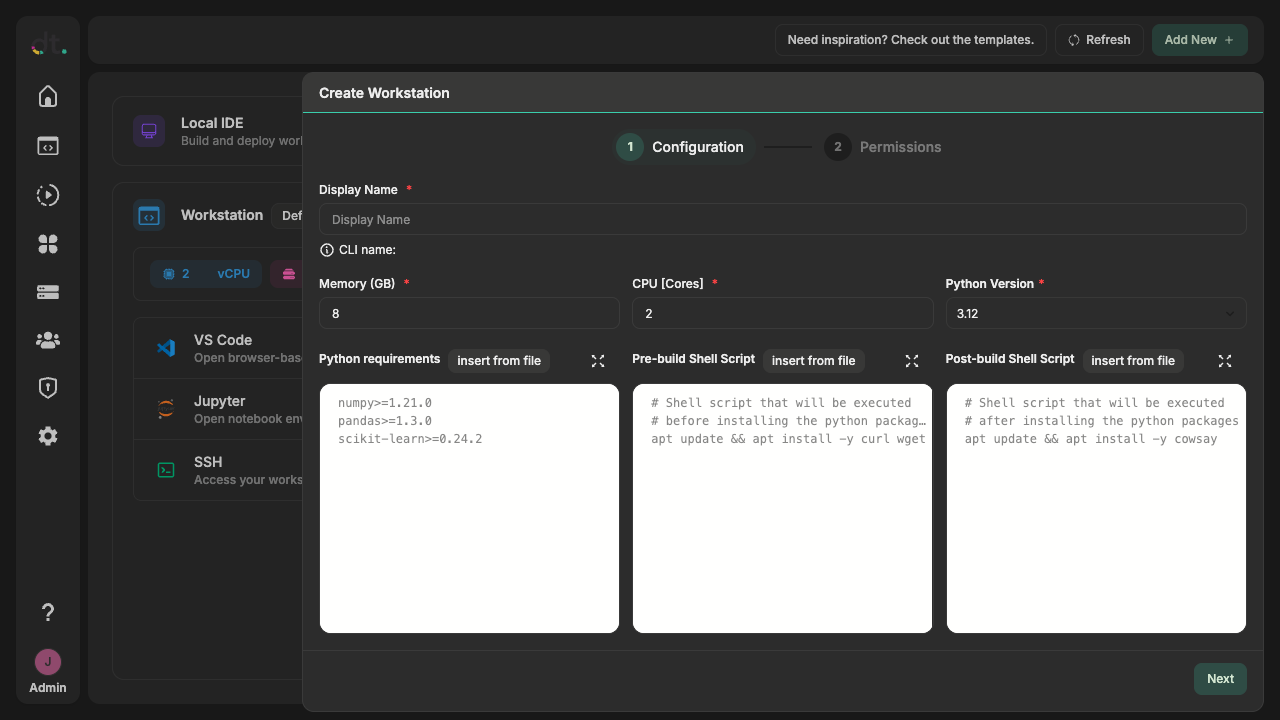
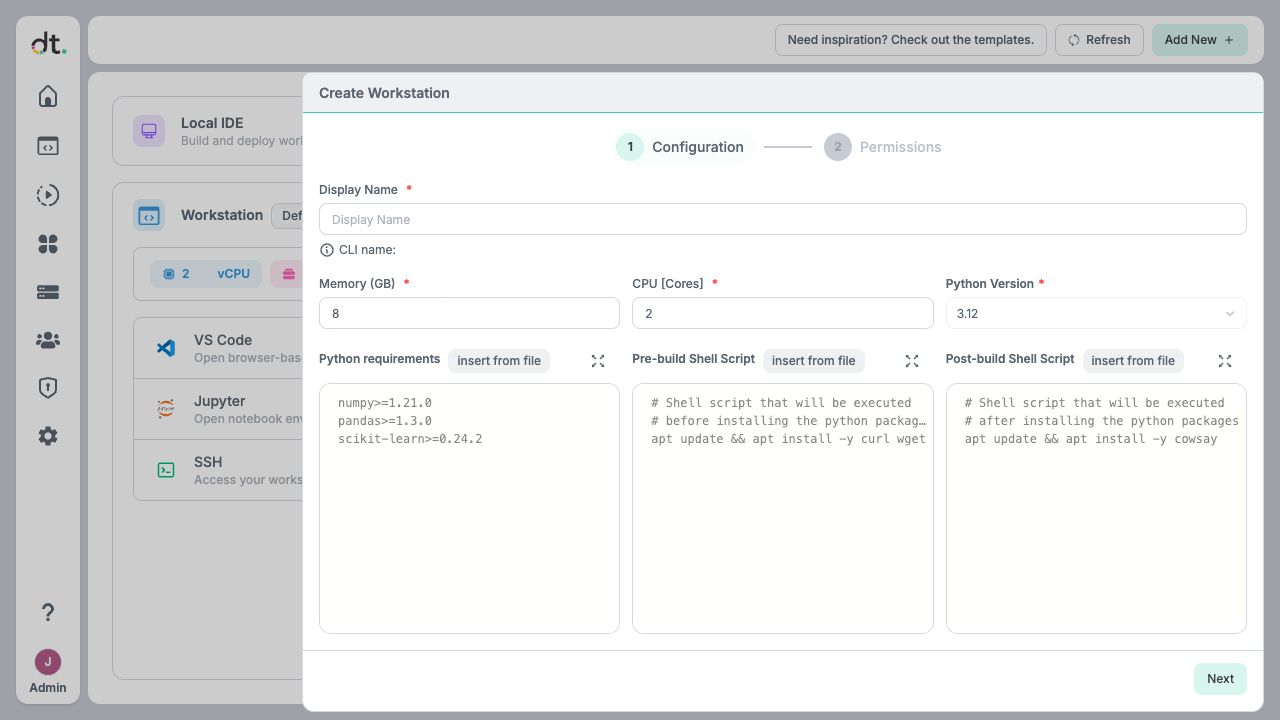
- Display Name: A human-readable name for the workstation. A CLI-friendly name is automatically derived from this (shown next to the field).
- Memory (GB): The amount of memory allocated to the workstation. The default is 8 GB.
- CPU Cores: The number of CPU cores allocated to the workstation. The default is 2 cores.
- Python Version: The version of Python to be used in the workstation (3.10, 3.11, or 3.12). The default is Python 3.12.
- Python Requirements: A list of Python packages to be installed in the workstation, in standard pip format (e.g.,
numpy>=1.21.0). - Pre-build Shell Script: A shell script executed before installing the Python packages. Useful for installing system-level dependencies.
- Post-build Shell Script: A shell script executed after installing the Python packages. Useful for additional setup tasks.
Click Next to continue to Permissions.
Step 2 — Permissions
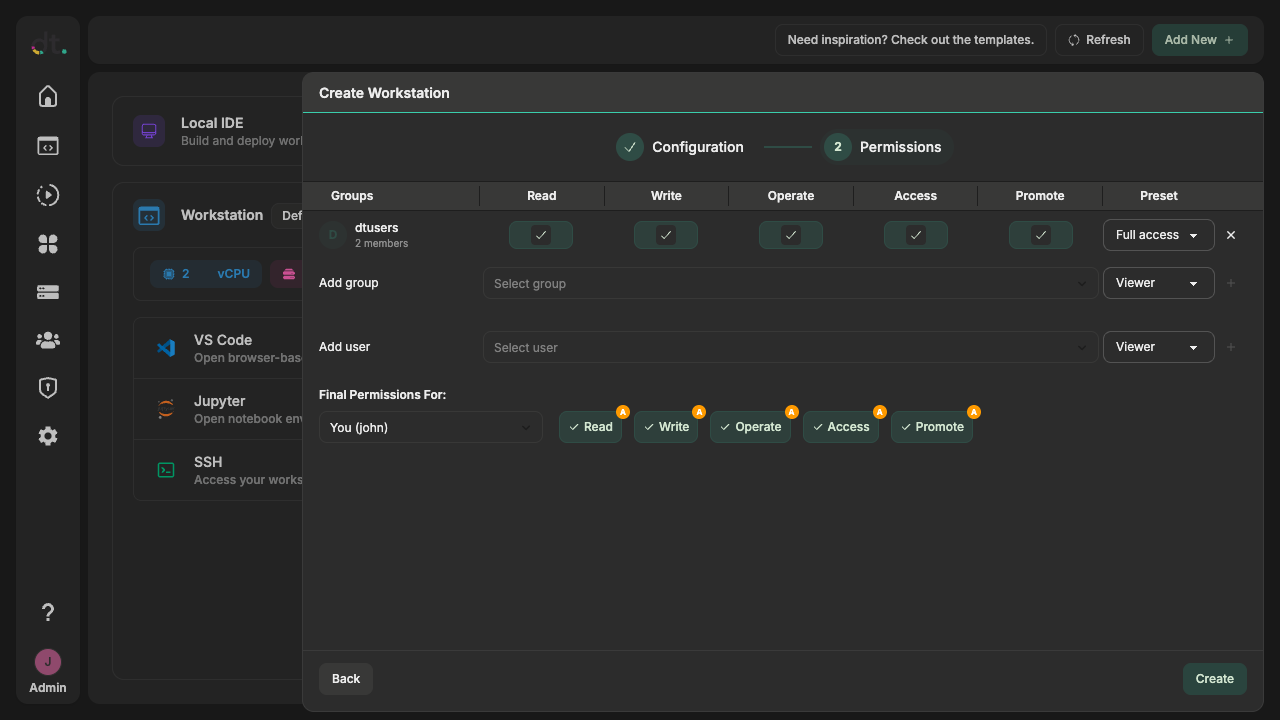
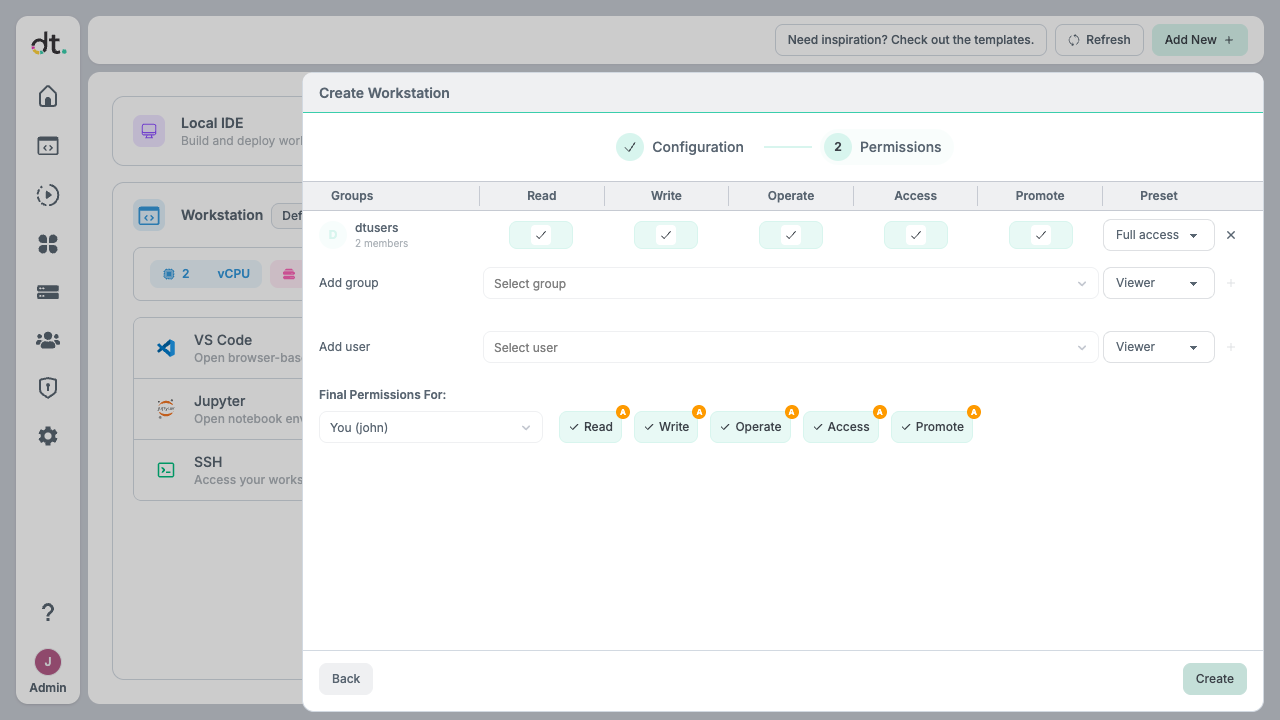
Configure who can access the workstation. The Permissions step shows a table of groups and users with checkboxes for Read, Write, Operate, Access, and Promote. Use the Preset dropdown (e.g. Full access, Editor, Viewer) to assign common permission sets. Use Add group or Add user to grant access to more people. Final Permissions For lets you preview the effective permissions for a selected user or group.
Click Back to change configuration, or Create to create the workstation. See Permissions for details on permission levels.
Editing a Workstation
Right-click on the workstation panel and select Edit to modify an existing workstation's configuration. The same dialog will open with the current values pre-filled.
Note
Editing a workstation triggers a rebuild of the workstation image. Users will need to restart their workstation to use the updated version.
Copying a Workstation
Right-click on the workstation panel and select Copy & Customize to create a new workstation based on an existing one. All configuration values are copied and can be modified before saving.
Deleting a Workstation
Right-click on the workstation panel and select Delete to remove a workstation. This action cannot be undone.