Apps
An app is a web application deployed on Datatailr that serves a user interface. Apps are long-running compute processes — once started, they stay running and accessible to users until explicitly stopped.
Apps are ideal for building interactive dashboards, data explorers, internal tools, and any browser-based interface that your team needs. You can use any Python web framework — Streamlit, Dash, Gradio, Panel, Flask, or plain HTML — and Datatailr handles the packaging, deployment, and access control.
How It Works
You write your web application as a regular Python script. Then you create an App object that tells Datatailr how to deploy it — the entry point function, resource requirements, and any Python dependencies your app needs.
# app.py
import streamlit as st

def main():
    st.title("Sales Dashboard")
    st.line_chart({"sales": [100, 200, 150, 300, 250]})

if __name__ == "__main__":
    main()
# deploy.py
from app import main
from datatailr import App

app = App(
    name="Sales Dashboard",
    entrypoint=main,
    python_requirements="streamlit",
)

app.run()
Once deployed, the app is available to all users with the appropriate permissions via the Datatailr dashboard or directly through its URL.
Key Features
- Any web framework — Use Streamlit, Dash, Gradio, Flask, or any other Python web framework.
- Automatic URL routing — Each app gets a unique, shareable URL accessible through the platform.
- Access control — Control who can view and use the app through permissions.
- Persistent — Apps stay running and available until you stop or redeploy them.
- Resource management — Configure CPU, memory, and other resources to match your app's needs.
Deploying an App
Run your deployment script to deploy the app to Datatailr:
python deploy.py
You can also deploy the demo app from a workstation:
python -m examples app
Once deployed, access and manage your app:
dt job ls                  # List all compute processes
dt job get sales-dashboard # View app details
dt log read sales-dashboard # Read app logs
Managing in the Dashboard
Navigate to Compute Processes and select the Apps tab to see all your deployed apps. The view shows the app name, current state, owner, architecture, and resource allocation (CPU and memory). Apps that are running have an Open button to launch them directly in a new browser tab.

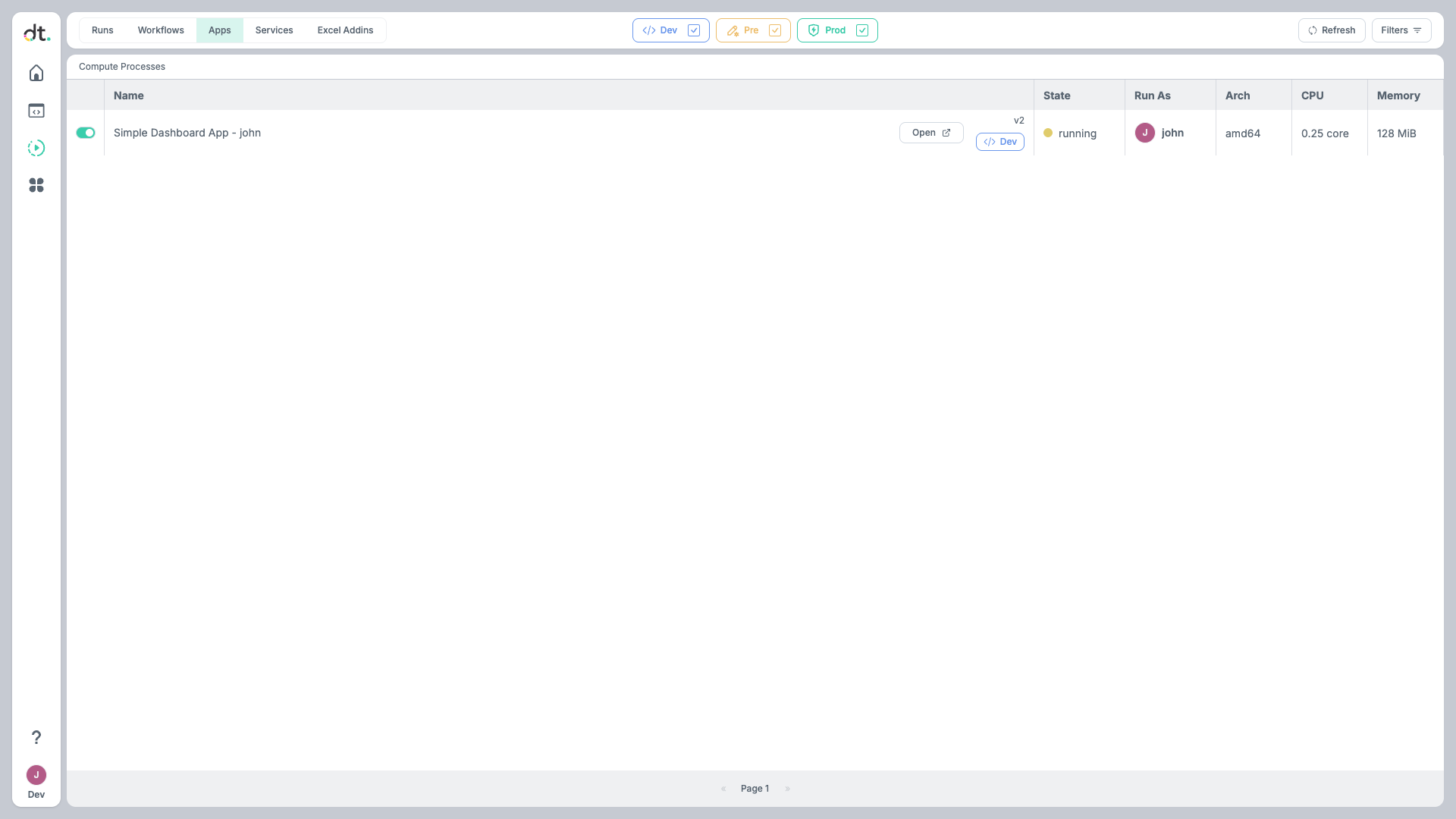
Use the toggle on the left to start or stop an app. Click on any app to view its logs, definition, and deployment history.
Accessing Apps from the Launcher
The Launcher page provides a quick way for users to find and open deployed apps (and Excel add-ins). Click the Launcher icon in the left sidebar to see all apps available to you, organized by group.


Click on any app card to open it directly. You can filter by Apps or Excel addins using the tabs at the top, and use the search bar to find a specific app by name.