Workstation
Workstation
A workstation is a dedicated cloud-hosted environment where you can develop, test, and deploy your data workflows and applications. Workstations provide isolated resources, allowing you to manage dependencies and configurations specific to your projects.
A default workstation is created for you when you sign up for Datatailr. Administrators can also create additional workstations as needed.
A workstation is based on an environment definition that specifies the software dependencies and compute resources required for your development process. You can open and manage your workstations from the workstations page of the Datatailr dashboard. Open it from the left sidebar by clicking the Workstations icon.
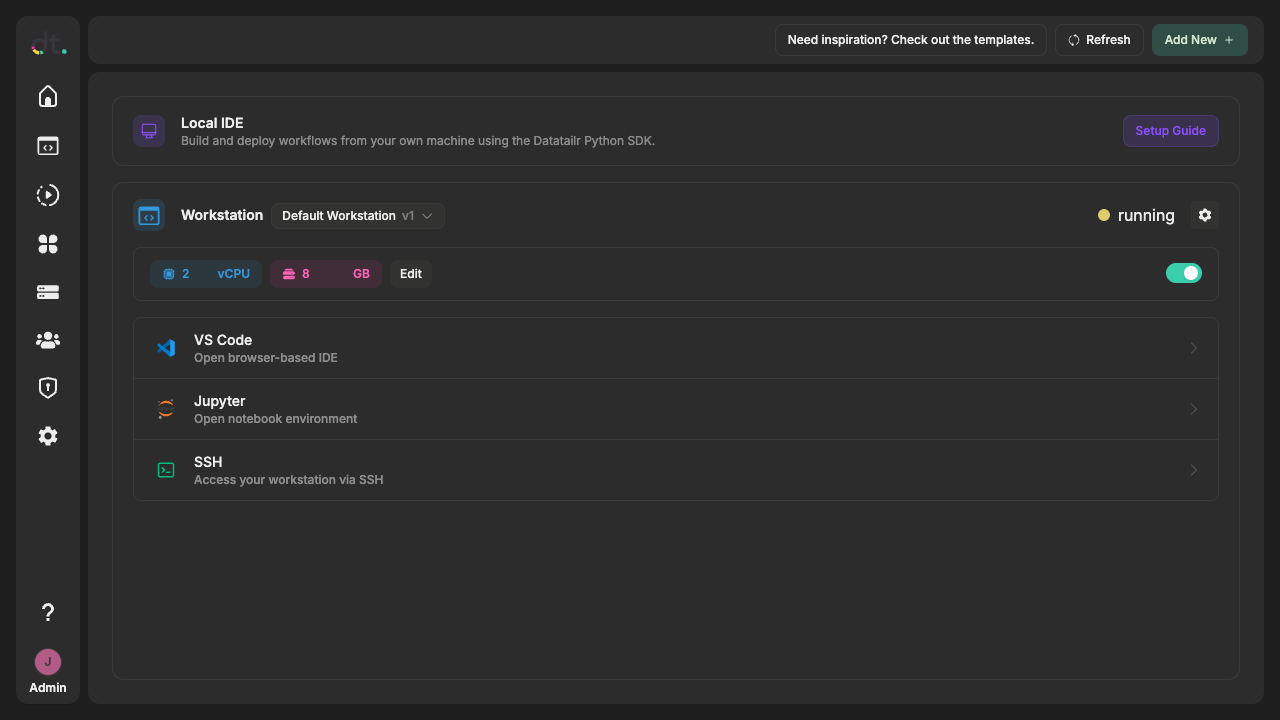
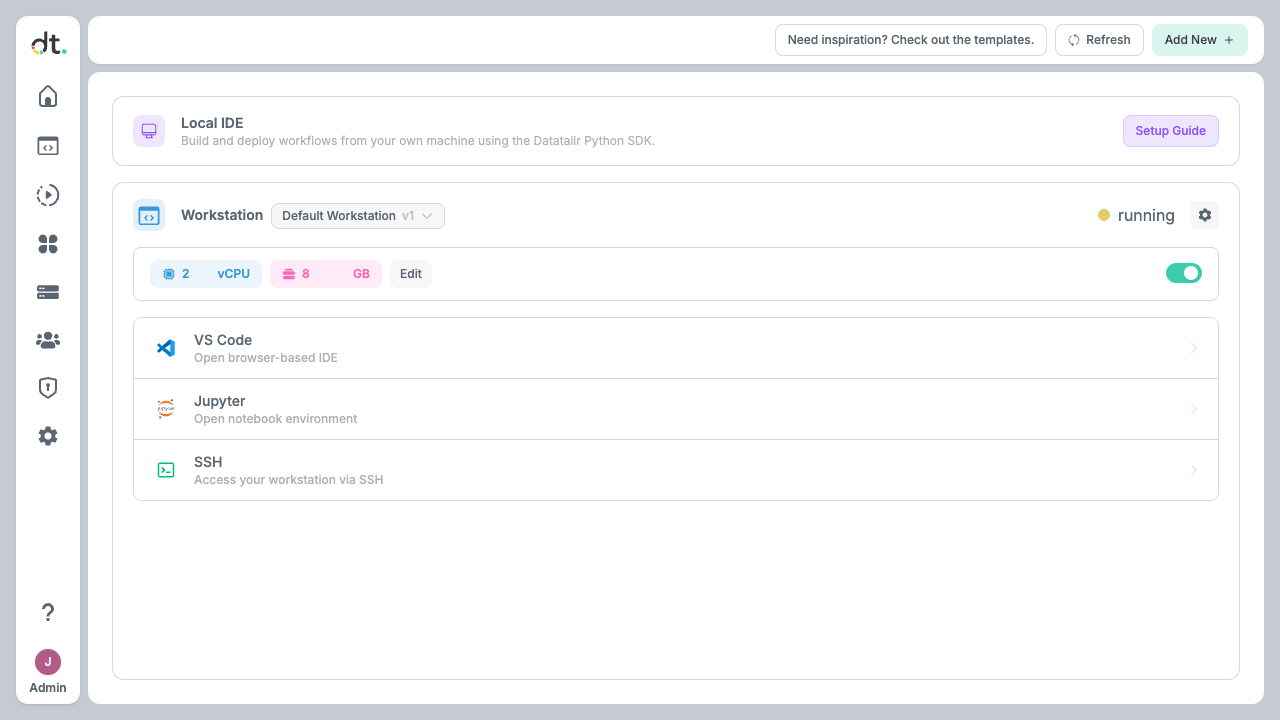
The workstation page has two collapsible panels:
- Workstation — your cloud-hosted development environment with resource controls and connect options.
- Local IDE — a setup guide for developing from your own machine using the Datatailr Python SDK.
Using a Workstation
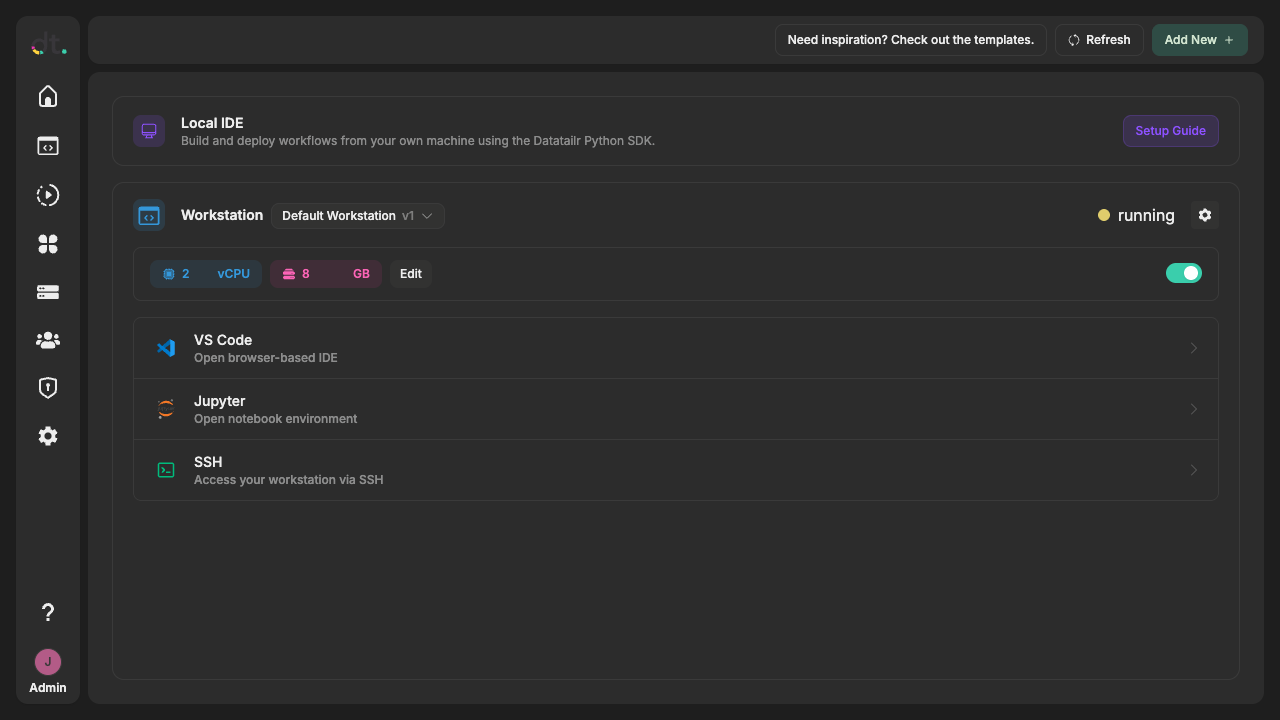
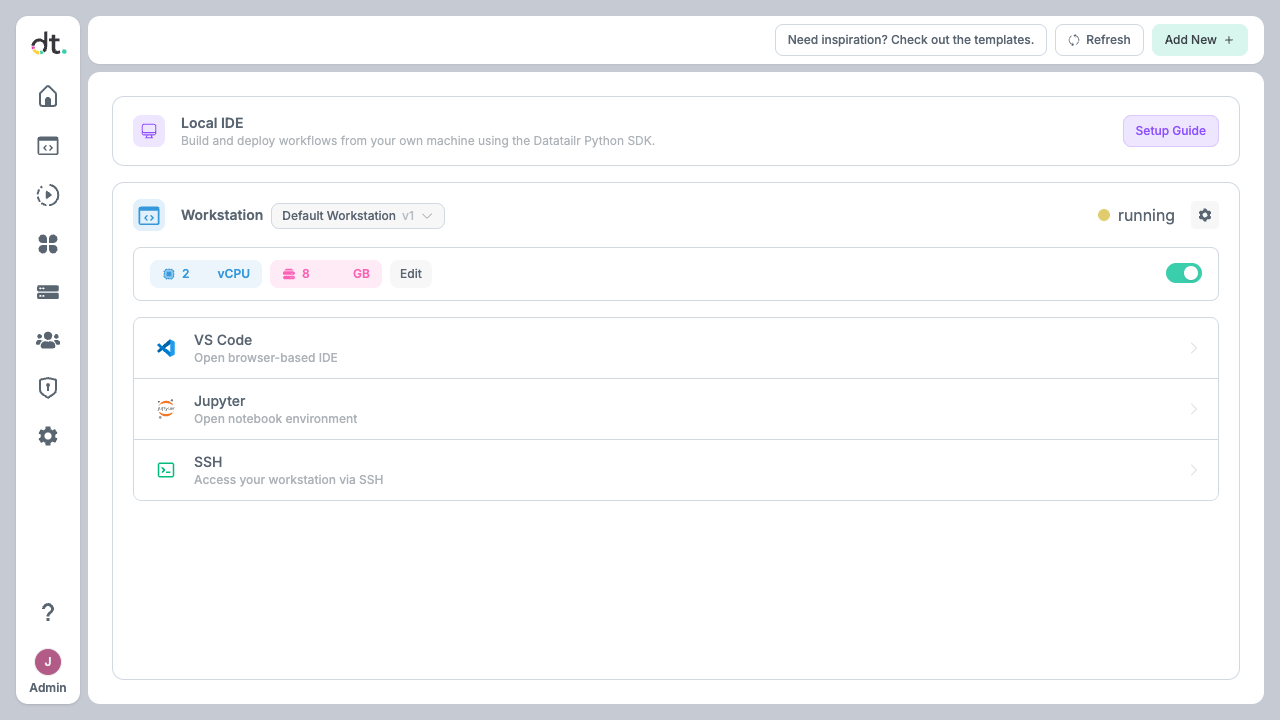
Click the Workstation panel to expand it. You will see your currently selected workstation with its resource allocation and connection options.
Resources
Each workstation has configurable vCPU and Memory allocations. You can adjust these values inline and click Save to apply. If your workstation is running, restart it for the changes to take effect.
Starting and Stopping
Use the toggle switch next to the resource controls to start or stop your workstation.
Connecting
Once your workstation is built and started, you can connect using one of the three options:
- VS Code — opens a browser-based IDE.
- Jupyter — opens a notebook environment.
- SSH — access your workstation from a local terminal (see below).
It is best to start with VS Code, as it provides a full-featured IDE experience and allows you to quickly initialize new Datatailr projects using the integrated terminal.
The first thing you'll see when you open a workstation is a README file with instructions on how to initialize a new demo project and deploy it to the Datatailr platform. See the Quick Start guide to get up and running.
Switching Workstations
If multiple workstations are available, use the dropdown next to the workstation name to switch between them.
SSH Access
Click the SSH row in the connect section to expand the setup steps:
-
Install the Datatailr Python package (if not already installed):
pip install datatailr -
Run the SSH setup command (only needs to be done once per workstation):
If you calldatatailr setup-ssh <workstation-name>datatailr setup-sshwithout specifying the workstation name, you will be prompted to choose from available workstations. -
Connect:
ssh dt-<workstation-name>
You can also use the SSH connection functionality in your local IDE (Cursor, VS Code, PyCharm, etc.)
Local IDE
The Local IDE panel provides a step-by-step guide for setting up your local machine to build and deploy workflows directly to the Datatailr platform using the Python SDK — without opening a cloud-hosted workstation.
AI Agent Skills
Datatailr ships with a set of AI agent skills that teach coding assistants (Cursor, Claude Code, Codex, Copilot, etc.) how to work with the platform. These skills are automatically available inside every workstation — no setup needed. Any supported AI agent will discover them and use them to help you deploy apps, workflows, services, and more.
To use the same skills on your local machine, see the Python SDK — Agent Skills section.
Administration
Administrators can create, edit, copy, and delete workstations. See Workstation Management for details. For an introduction to permissions on workstations and other resources, see Permissions.