
Data Engine Manager
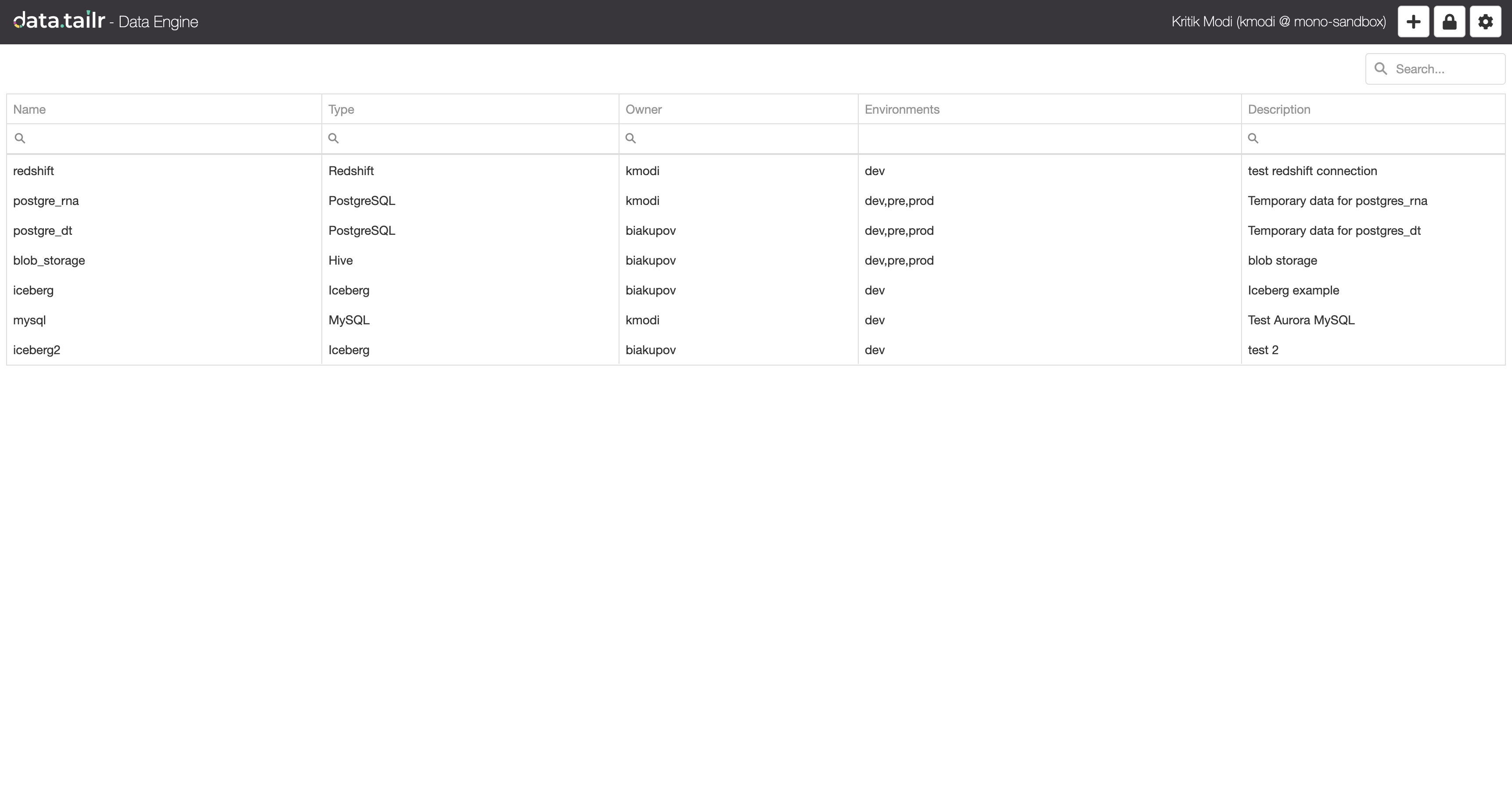
- Upon opening the Data Engine app, the user sees this screen :
-
The level of control the user has on the data sources, depends on whether the user is an
adminor not. -
Developergroup users can only view the list of available data sources, whileadminusers can do the following :
- Add new data sources.
- Modify existing data sources.
- Delete data sources.
- Add/modify access control rules.
- Control cluster settings (CPU/Memory/Workers).
- To add a new data source, users can click on the + icon on the top right corner. The popup looks like this :
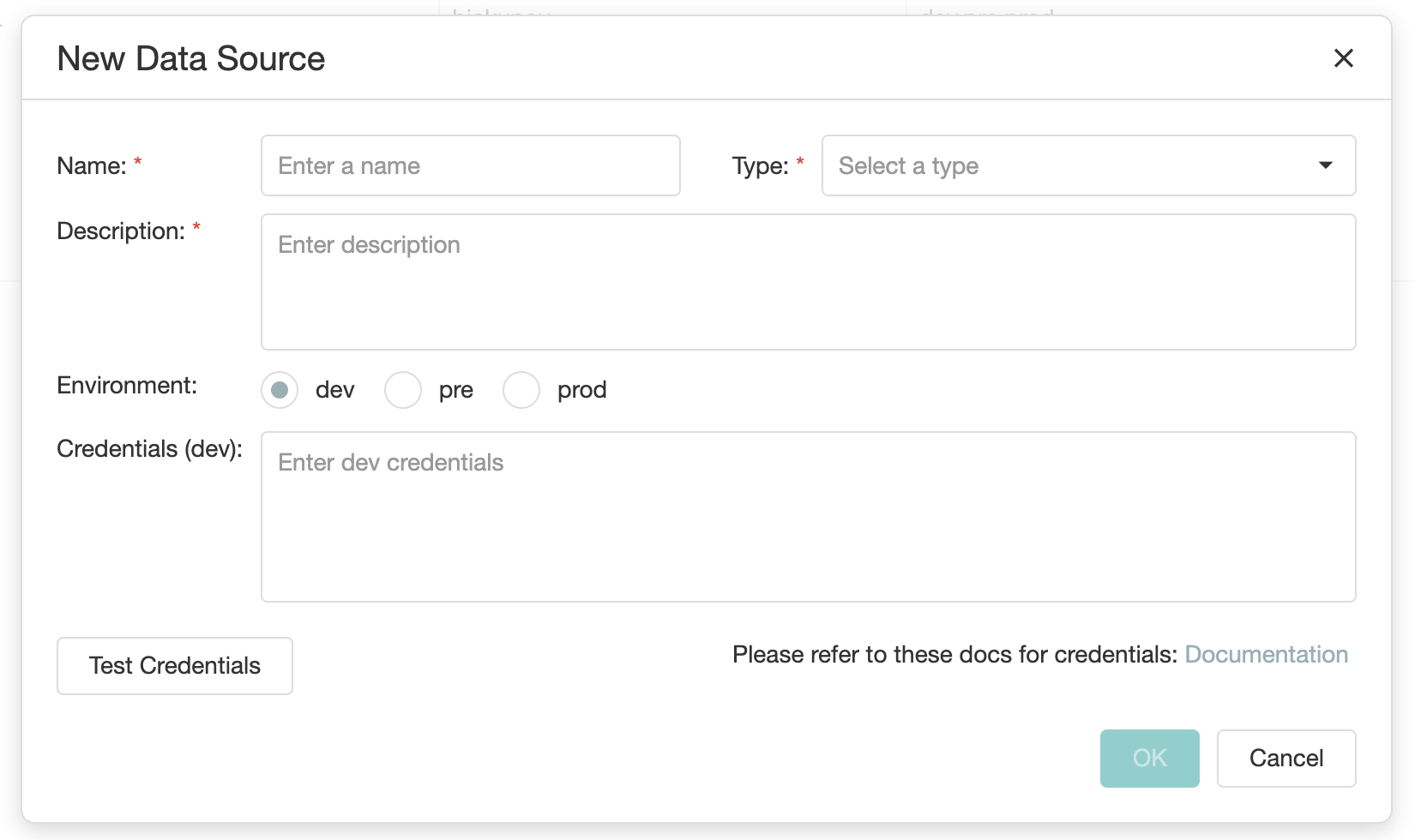
After adding the credentials, users can click on Test credentials button to evaluate whether their entered credentials can connect to that data source or not.
- To modify or remove an existing data source, users can right-click on the data source to get these options :
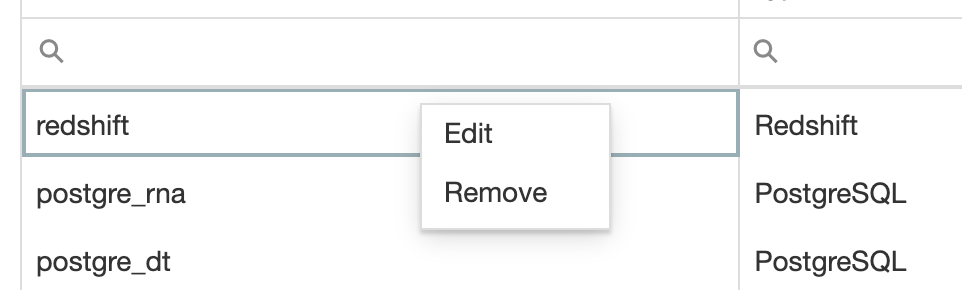
After doing these, users will get an option to restart the Data Engine cluster so that the done changes can take effect.
- To add or modify the access control rules, users can click on the
lockicon on the top right corner. The popup looks like this :
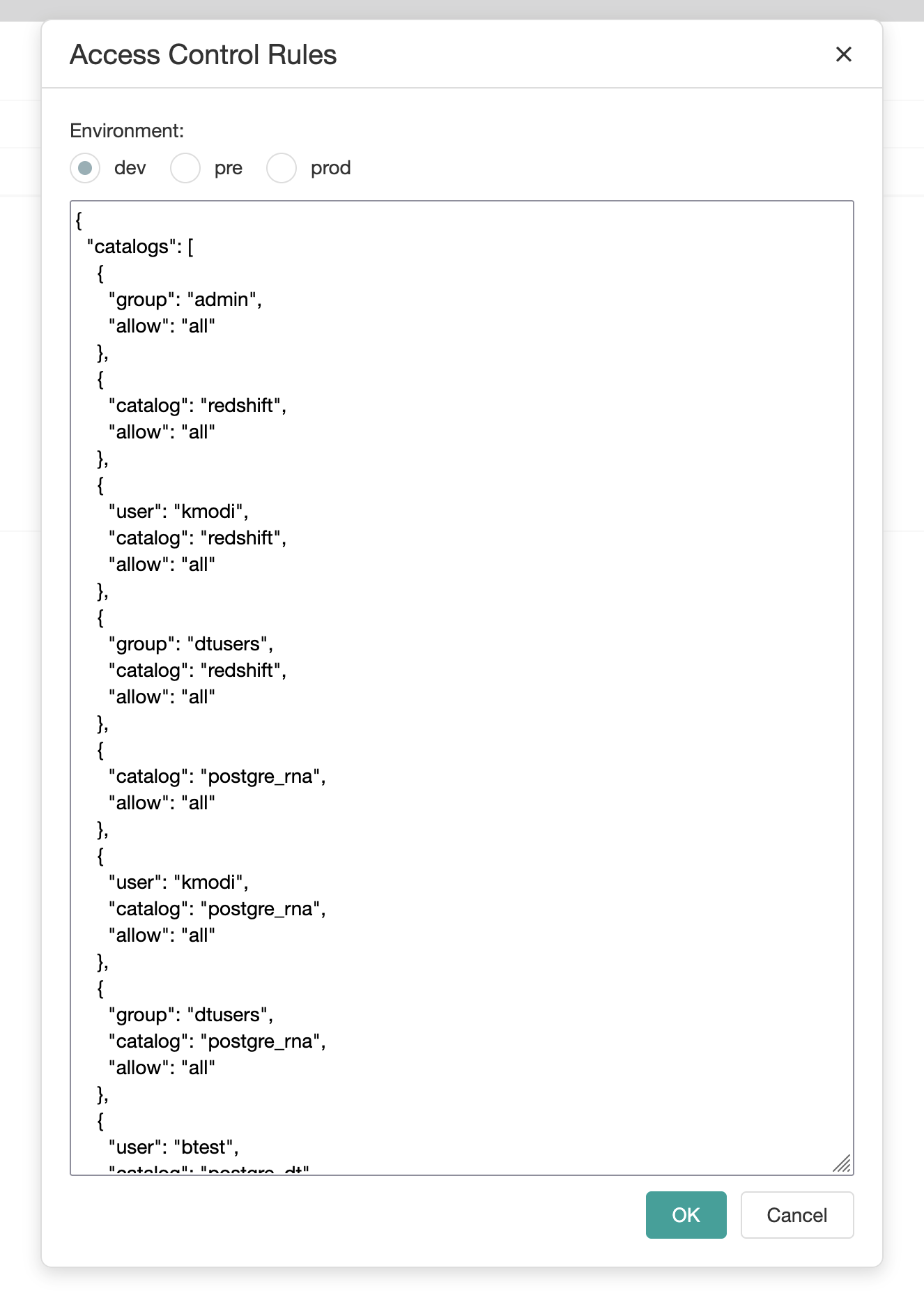
These rules are environment separated, i.e., users can configure different rules for each environment. You can find more details about access control rules here.
- To control the cluster settings, users can click on the
settingsicon on the top right corner. The popup looks like this :
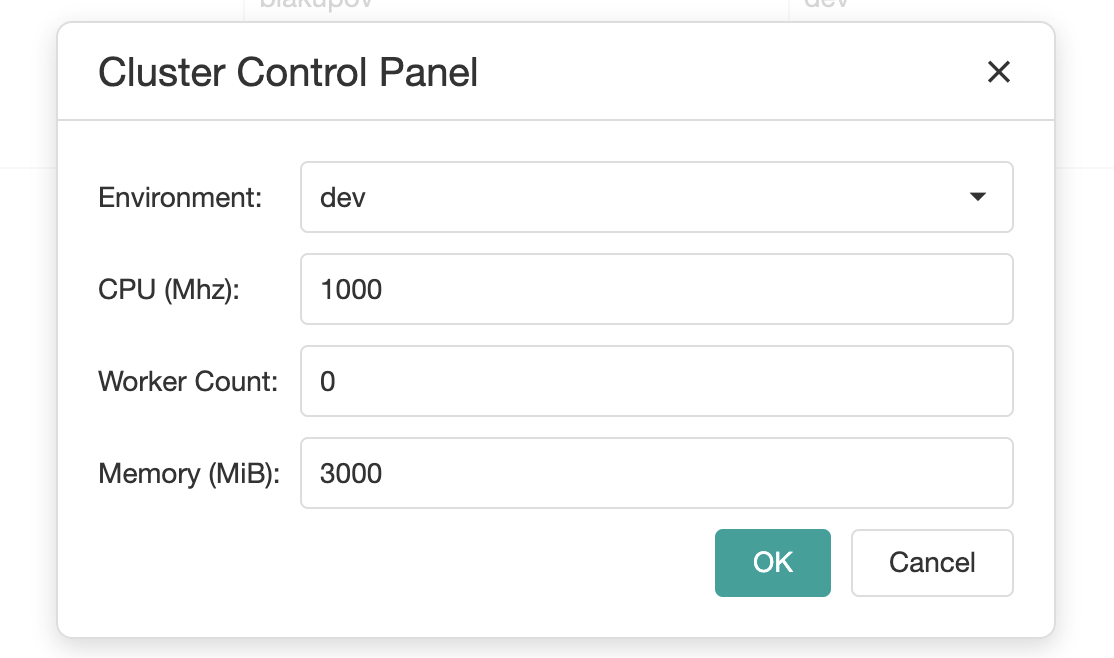
These settings are also environment separated. After updating the settings, users will get an option to restart the Data Engine cluster so that the updated settings can take effect.
Updated 4 months ago